Download videos and streams via m3u8
Contents
Contents
TL;DR
- When a site streams video in chunks (m3u8 playlists pointing to ts chunks) instead of offering “Save Video As”, you can find the m3u8 link in the browser’s Network tab and hand it to VLC instead of downloading chunks by hand.
- From the command line, the author’s
download_stream.pyscript (needs Python 3 and VLC in the PATH) takes the m3u8 link withpython3 download_stream.py -o myFileName -i linkand writes an .mp4; stop withCTRL + Cor let it finish. - No terminal needed: in VLC, Media → Open Network Location (
CTRL + N), paste the m3u8, then use Stream → Add → Explore to pick destination, deactivate “Active Transcoding”, choose “Video - H.264 + MP3 (MP4)”, and click Stop when done.
Introduction
If you can’t find this menu when right-clicking a video:
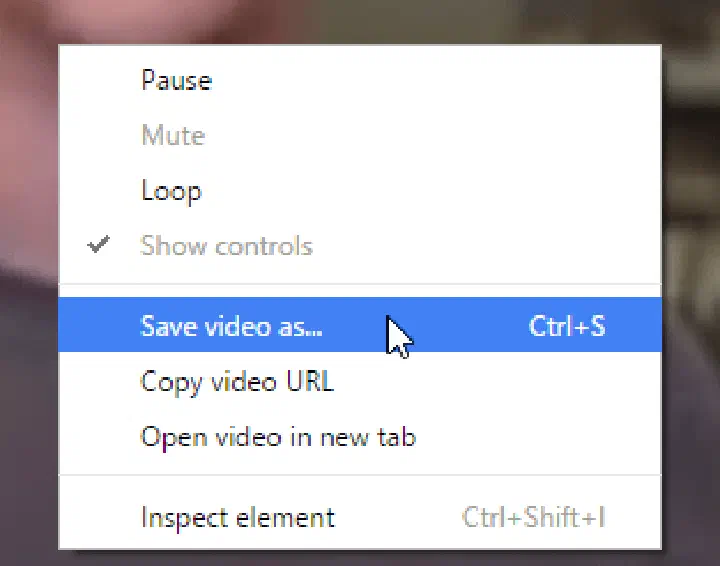
This guide is probably for you.
There are lots of webpages that stream chunks of video to make it faster and to save us some data resources. Most of these pages implement a list (m3u8) with the location of these video chunks (ts) so that you can play the video and iterate over them.
Examples of them are pages that won’t let you download the content or streaming pages like Twitch. This rather than being an exploit or a bug is a feature of the playback system, so all good for us.
You can download each of these video chunks and unify them all, but that would be very time-consuming. Just imagine unifying a 4K video of half an hour, that’s insane.
Instead we can locate the list, pass it to VLC and it will download the video chunks and unify them all for us.
Locating the m3u8
I have an Auronplay live streaming here:
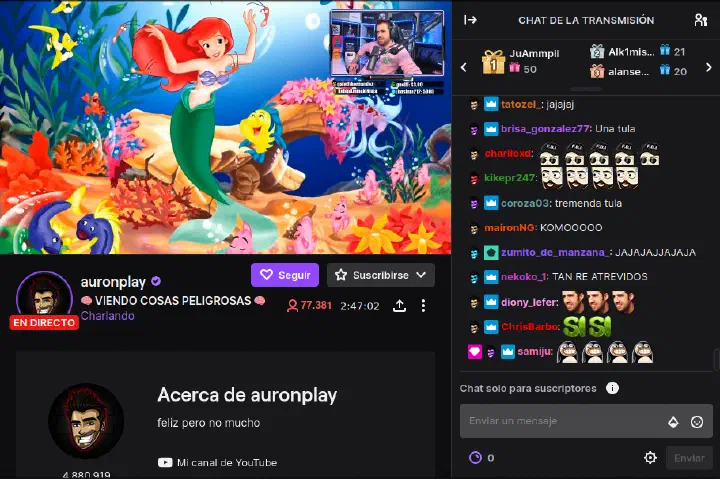
Some people will try to use the inspect tool with the media box, but that’s useless. We need to analyze the traffic the webpage is generating and presenting us, we can do that with the network tab (F12 and Network tab):
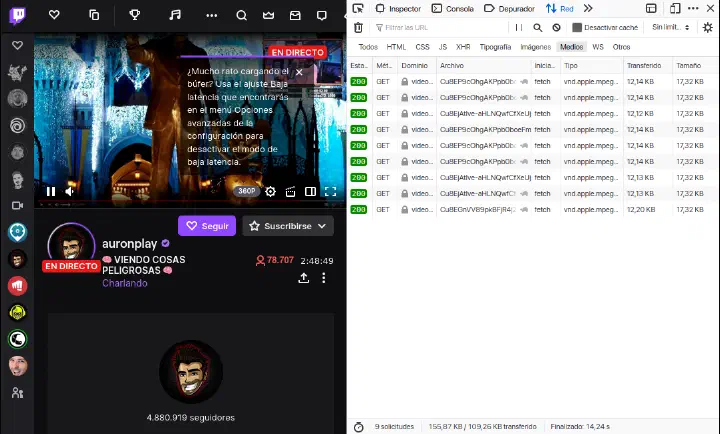
All of the links the page is generating are m3u8 files. This is because the list is constantly adding ts video chunks and the page needs to refresh the list so that we can keep watching the streaming. In a webpage where videos has a static length normally there would be only one m3u8 file or more in the case of different resolutions.
https://video-weaver.mad01.hls.ttvnw.net/v1/playlist/Cu8EP9cOhgAKPpb0boeFmE5lgvpeF1TItnVuv7OLvTiWJ5QfrgH-SY6ltLKIvbXzMIYMPJDMVEP_Zzi6wpWgcJ29AqtkDinYVbaDOP7t0SSlLwFx3KdE55m9EWtmqUfREhO6xVbK4sruwg6A7WJPA7LEN0yAc48xFmHjcbFKXrxTwp-cv9o60czP-6zxLZRVuNsqahJ-dWFcEJXMMyHJYAhJOAHXUg_MI6j8fmAuSpC0Qvc7hOl9MeyLA_Rvbgax1jTlyxgh0hkpE2nWwfynFabfFLH-5zJjUqgBuqGNLsvhImQpYUKWy1zfL3zAIV-eIRJUJmAKyG4Kh5Y2u8in8PJKqYCiQcjhqMaXHojdXCujCXFJNqZMj4ucLVVuh9kOGCRr6Q1lyayNlcPnmHPJsGj-xGY42gomJfiuEOZwqJE6nHj6nDEElvHiJ4u-XlPWg0F2NvXOsDR25j_GcQFfaXAGCgpovoJx7_thwN1jqai86montBxcqzFVqIKB-OGOjq9AfeQhvzwJ8dN-o_9MssUMgo22q2nIY_CQHyXL7XXVsiARFTBke_pxZHxVVU0YfwBmh9PMlV2hUCmOjXnW7sTJLYc-PbU-3lqlwrHG37hN-ToZEVcvG9NZLyKRtupQEg9UG22NPloyLGKhLoeN0ZSCqnU4jwYfprXLMMjOqBTTxC-dW0iumAu9-RDlWs4OCZ1a5hI36VHWH8aV91LZ8imlSoq4GTrWK8jahGf9lNiKwiF1Bk30TeU9u46_Pi1WwyRitvM_LfV9mWsgjTjLL-yFFRb3kBL7cO-dUuyHA_5EbjcFFdQclW2dskeKnRkWtigSEHyHkBIVOJchNvf7BeD94HMaDDoRTke9R9ISw-E01w.m3u8
Download
Recently I have discovered that is possible to download the m3u8 via command line, I’ve made a stupid easy python script to download this while in Linux, but you can alternatively download it via an interface in Linux or in Windows.
Via Command Line
This is the script. In order to use it, you need Python 3 and VLC installed and in the PATH.
To download it:
wget https://github.com/n0nuser/PyScripts/raw/main/download_stream.py
To run it:
python3 download_stream.py -o myFileName -i linkofm3u8
In the Auronplay case it might be:
python3 download_stream.py -o twitch_auronplay -i https://video-weaver.mad01.hls.ttvnw.net/v1/playlist/Cu8EP9cOhgAKPpb0boeFmE5lgvpeF1TItnVuv7OLvTiWJ5QfrgH-SY6ltLKIvbXzMIYMPJDMVEP_Zzi6wpWgcJ29AqtkDinYVbaDOP7t0SSlLwFx3KdE55m9EWtmqUfREhO6xVbK4sruwg6A7WJPA7LEN0yAc48xFmHjcbFKXrxTwp-cv9o60czP-6zxLZRVuNsqahJ-dWFcEJXMMyHJYAhJOAHXUg_MI6j8fmAuSpC0Qvc7hOl9MeyLA_Rvbgax1jTlyxgh0hkpE2nWwfynFabfFLH-5zJjUqgBuqGNLsvhImQpYUKWy1zfL3zAIV-eIRJUJmAKyG4Kh5Y2u8in8PJKqYCiQcjhqMaXHojdXCujCXFJNqZMj4ucLVVuh9kOGCRr6Q1lyayNlcPnmHPJsGj-xGY42gomJfiuEOZwqJE6nHj6nDEElvHiJ4u-XlPWg0F2NvXOsDR25j_GcQFfaXAGCgpovoJx7_thwN1jqai86montBxcqzFVqIKB-OGOjq9AfeQhvzwJ8dN-o_9MssUMgo22q2nIY_CQHyXL7XXVsiARFTBke_pxZHxVVU0YfwBmh9PMlV2hUCmOjXnW7sTJLYc-PbU-3lqlwrHG37hN-ToZEVcvG9NZLyKRtupQEg9UG22NPloyLGKhLoeN0ZSCqnU4jwYfprXLMMjOqBTTxC-dW0iumAu9-RDlWs4OCZ1a5hI36VHWH8aV91LZ8imlSoq4GTrWK8jahGf9lNiKwiF1Bk30TeU9u46_Pi1WwyRitvM_LfV9mWsgjTjLL-yFFRb3kBL7cO-dUuyHA_5EbjcFFdQclW2dskeKnRkWtigSEHyHkBIVOJchNvf7BeD94HMaDDoRTke9R9ISw-E01w.m3u8
To stop downloading just press CTRL + C or wait until the streaming (downloading) finishes.
It will result in a twitch_auronplay.mp4 file.
Via interface
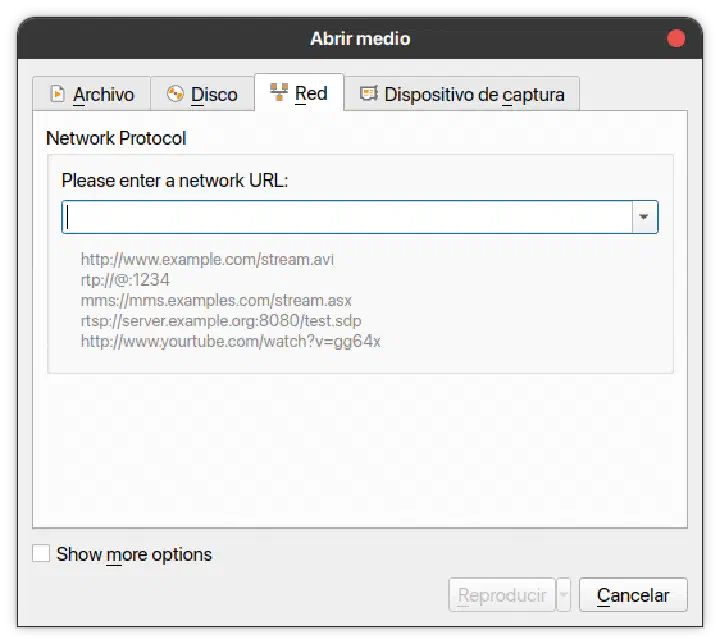
Open VLC and in the “Media” tab click on “Open Network Location” or just CTRL + N:
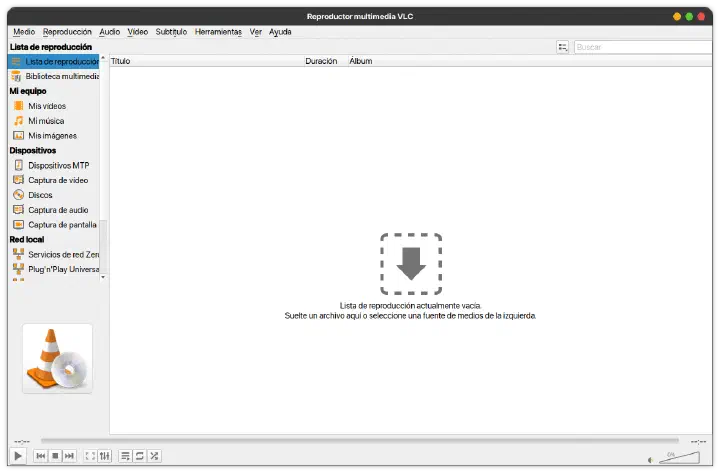
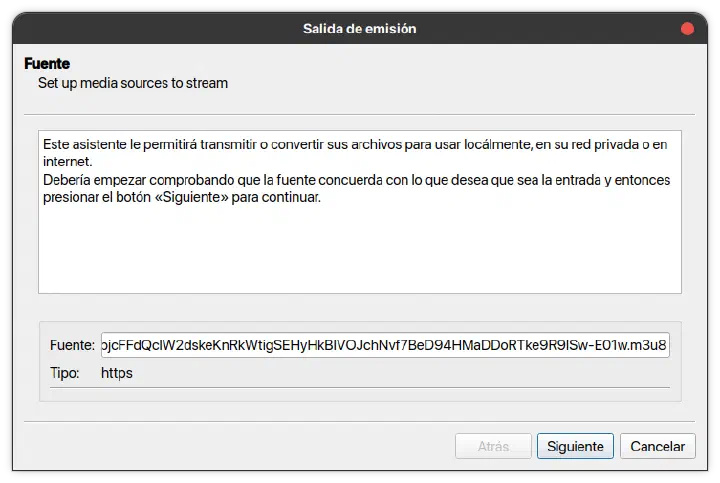
In the input, paste the m3u8 link. Then click on “Stream” in the drop menu or press ALT + S:
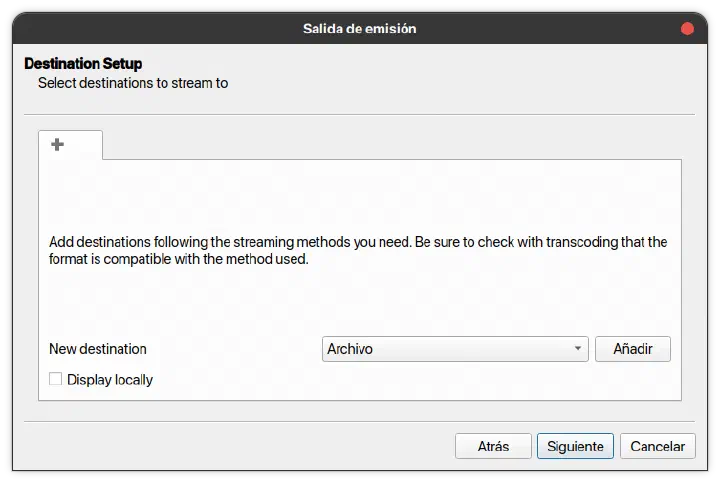
Then click on “Next”:
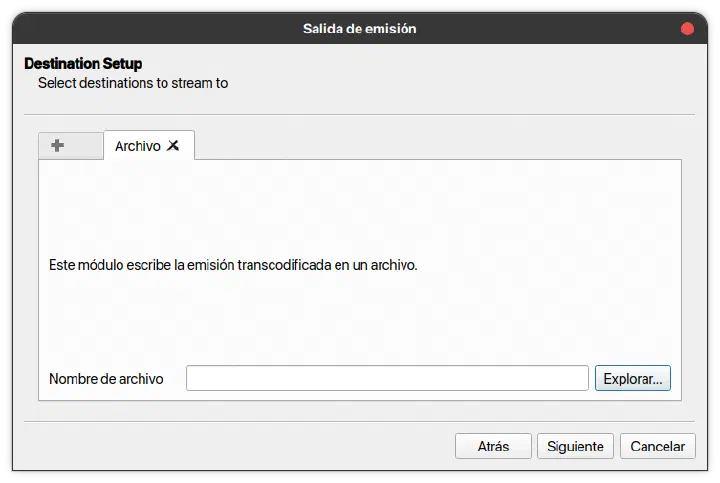
Click “Add” file:
Now click on “Explore” and select the location where the file is going to be saved and give it a name. Then click “Next”:
Deactivate “Active Transcoding”, and in the drop-menu select “Video - H.264 + MP3 (MP4)” and click “Next”:
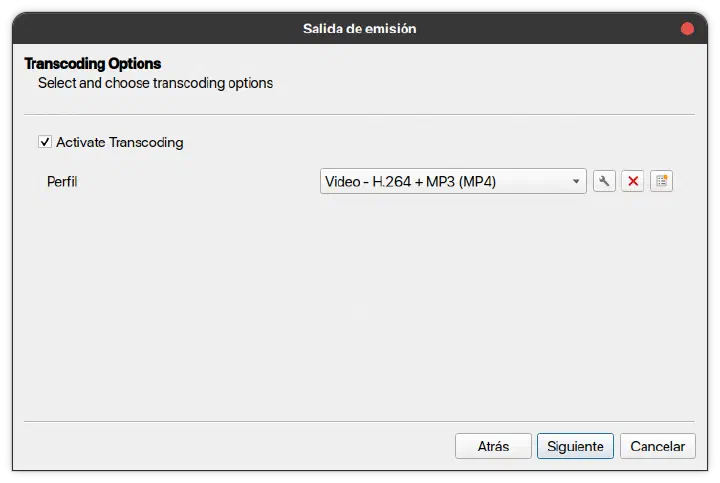
Click on “Next”:
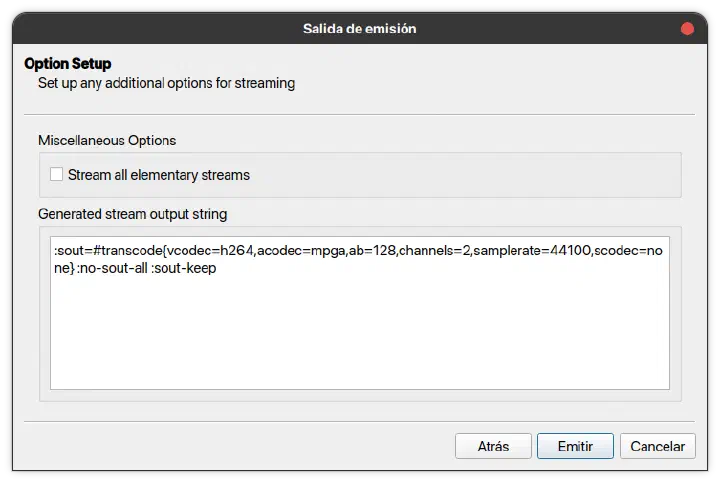
It will be recording the video/streaming and saving it to the location you’ve chosen.
To stop the recording, same as before, just click on the Stop button or wait until the Streaming finishes.