Linux Hardening Guide: SUID, SGID and Tools
Contents
Contents
TL;DR
- Lock down the physical and boot side first: protect the BIOS/GRUB with passwords so nobody boots from CD/USB or passes
init=/bin/shto get root without your password, and remember BIOS vendors ship known backdoor passwords. - Watch your SUID and SGID bits — they let a file run as another user (often root), and SUID on scripts is something to avoid; list them with
find / -perm /4000and remove the bit when it’s not needed. - Harden accounts with PAM (enforce password quality with
pam_pwquality, block reuse of old passwords), check for accounts with empty passwords in/etc/shadow, lock unused users, and mount filesystems like/tmpwithnodev,nosuidandnoexecin fstab. - Add scanning tools for ongoing checks:
chkrootkitandrkhunterfor rootkits,tripwireto detect filesystem changes, plus fail2ban and Lynis.
Linux series: Users & Groups → Filesystem → Monitoring Processes → System Auditing → Backup → Startup & Shutdown → Disk Quotas → Security
Introduction
Today there are numerous attack strategies and patterns: ransomware, DDoS, rootkits, cryptomining programs, botnets… including physical attacks.
In this post, I’ll try to show you numerous things to take in consideration when hardening a Linux system.
Note (2026): PAM modules and tool names changed since this was written:
pam_cracklibis nowpam_pwquality, and password hashing defaults to yescrypt. The commands below are updated.
Things to evaluate:
- What are we trying to keep safe?
- Against what are we trying to be protected?
- Against whom are we trying to be protected?
There is a gradual line that implies comfort and security. An ultrasecure system is almost never comfortable, while a super comfortable flow isn’t always the most secure.
Security detection and prevention involves:
- Analysis of psychological factors.
- The behavior of the users of the system.
- The possible intentions of the attackers.
Physical security
There is no point in securing networks and services if the computers themselves are not protected.
- Who can enter the server room?
- Is access monitored?
These questions deserve to be considered (and answered) when assessing physical security. Physical safety also includes taking into account accident risks, such as:
- Recover computer systems and data from a computer disaster.
- Natural disaster or intentional attack
- In a fire:
- Systems that release gases and consume oxygen to put out the fire.
- Concrete anti-fire systems
- Backups are kept in separate buildings, or at least in a fireproof safe.
- Floods
- Earthquakes
- Car crashing against the building.
- In a fire:
And so on…
Bootloaders
If the system can be booted from a disk or CD, an attacker could access the data on a GNU/Linux partition (or also Windows) just by mounting the filesystem and could create a root user without needing to know any passwords (just by modifying passwd and shadow files).
In this case, you need:
- Protect the system boot from the BIOS, for example, protecting access by password, so that booting from CD or pen drive is not allowed.
- Update the BIOS, as it may also have security flaws.
In addition, you have to be careful because many of the BIOS manufacturers offer known extra passwords (a kind of backdoor). So we cannot depend on these measures exclusively.
Getting Root Shell without the password
The first process is the init daemon (nowadays with Systemd, a symbolic link to /lib/systemd/systemd). However, it is possible to provide an init option to the kernel by specifying a different program.
Anyone with access to the computer can press the Reset button and thus restart it. Then, at the bootloader prompt is possible to pass the init=/bin/sh option to the kernel. This way, we can gain root access without knowing the administrator’s user password.
SUID and SGID
Two particular permissions are relevant for executable files: setuid and setgid (represented by the letter s). We will frequently refer to bits since each of these Boolean values can be represented by a 0 or a 1.
The setuid bit allows a user X to run a non-interpreted binary file owned by user Y, as if they were user Y. For example, I’m user peter, now let’s say that root has a binary file that can be executed by anyone. Normally, it would run with my user, but if that file has the SUID bit, it would run as root.
Don’t make scripts SUID. Linux ignores the SUID bit on interpreted scripts on purpose, because of race conditions and environment tricks (
PATH,IFS, shell metacharacters). A SUID C wrapper that calls the script has the same problems and is easy to get wrong. If a user needs to run a script as another user, write asudorule for that exact command instead (sudo visudo -f /etc/sudoers.d/myscript).
SUID programs are dangerous because anything wrong with them runs with the owner’s privileges. Keep the list short, audit it, and in case the setuid is not needed, eliminate it.
The setuid bit is set with chmod u+s or chmod 4755, and removed with chmod u-s. The setgid bit (sgid) is a separate bit: chmod g+s or chmod 2755, removed with chmod g-s.
With ls, setuid shows as an s in the owner’s execute slot (-rwsr-xr-x), and setgid as an s in the group’s execute slot (-rwxr-sr-x). A capital S means the bit is set but the execute bit is not, which is usually a mistake.
To check all of the SUID and the SGID files we can use find:
find / -perm /4000 > filesWithSUID.txt
find / -perm /2000 > filesWithSGID.txt
Example
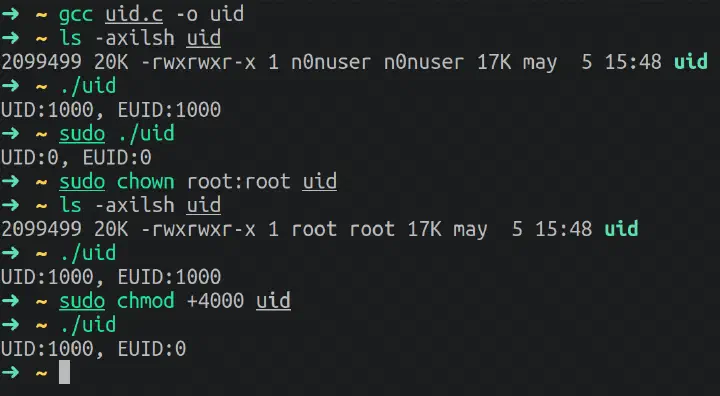
Code in C to check Effective UID.
#include <stdio.h>
#include <unistd.h>

int main(int argc, char **argv)
{
    printf("UID:%d, EUID:%d\n",getuid(),geteuid());
    fflush(stdout);
}
Compile it with gcc uid.c -o uid, then try the following:
./uid
sudo ./uid
ls -axilsh uid
sudo chown root:root uid
ls -axilsh uid
./uid
sudo chmod +4000 uid
./uid
Result:
Sticky Bit
It is mainly used in shared/public directories (like /tmp) in which users can write but can’t delete each other’s files. Inside a sticky directory, a file can only be deleted or renamed by the file’s owner, the directory’s owner, or root.
The bit is set by: chmod +t dir, and can be removed with -t.
In a ls it will appear as a directory with permissions: drwxrwxrwt (look at the last t).
Example case: a directory where my friends can upload movies; they have all of the permissions, but with the sticky bit each friend can only delete their own uploads, not the others'.
Improving security
Managing user accounts in Linux is one of the most critical jobs for Linux system administrators. Password security should be considered the primary concern for any secure Linux system.
BIOS
Deactivate in the BIOS the USB ports and the rest of the peripherals like (CD/DVD rom.)
To block USB storage from Linux, create (as root) a file in modprobe’s configuration directory. The name must end in
.confor modprobe ignores it:echo "install usb-storage /bin/true" | sudo tee /etc/modprobe.d/no-usb.confThis only blocks USB storage devices, not the USB ports themselves (keyboards and others still work).
Add a password to GRUB. Generate a hash with
grub-mkpasswd-pbkdf2, then addset superusers="admin"andpassword_pbkdf2 admin <hash>to/etc/grub.d/40_customand runsudo update-grub.Encrypt the disk (LUKS). Passwords on the BIOS and GRUB don’t stop someone from taking the disk out; full-disk encryption does.
Rhost files
.rhosts files belong to the old rsh/rlogin services: they list hosts and users allowed to log in without a password. Those services are long gone, and OpenSSH ignores .rhosts by default (IgnoreRhosts yes in sshd_config). It’s still worth checking that nobody turned that off and that no such files are lying around:
sudo sshd -T | grep -i ignorerhosts
sudo find /home -name .rhosts -o -name .shosts
For passwordless SSH (backups, admins), use a private key instead, as in my SSH post.
Password
Change the password encryption system for one that is more complex and difficult to break. Recent Debian (11+) and Ubuntu hash passwords with yescrypt by default; older releases used SHA512. Check
ENCRYPT_METHODin/etc/login.defs.Use of strong passwords: Many users use weak passwords that can be discovered through a brute force attack.
Check the validity time of user passwords. To set the expiration date of the password of a user, you need to use the chage command (it does not detect empty passwords; see below). To know the time of use, validity or days since the last password change, the command:
chage -l username
PAM
With the PAM module (Pluggable Authentication Modules) you can configure and improve password policies in Linux:
- Prevent using old passwords
- Set minimum password length
- Define password complexity
- Define the period in which the password expires
The type of passwords allowed and some other characteristic associated with them is configured in the file: /etc/pam.d/common-password. The default configuration uses the pam unix module.
Warning: a typo in a PAM file can lock you out or break password changes. Keep a root shell open in another terminal while you edit and test.
To avoid use of weak passwords, install libpam-pwquality (it replaced the old pam_cracklib, which was removed from Debian and Ubuntu):
sudo apt install libpam-pwquality -y
It adds a line like this to /etc/pam.d/common-password; you can tune it there or in /etc/security/pwquality.conf:
password requisite pam_pwquality.so retry=3 minlen=12 difok=3
The options mean:
- minlen = minimum length
- difok = minimum number of characters that must be different from the previous password
- lcredit, ucredit, dcredit, ocredit = lower-case, upper-case, digits, others. A negative value is a requirement (
dcredit=-1means at least one digit); a positive value is only a bonus towards the length score.
Mind that NIST now recommends length over composition rules, so minlen matters more than the credits.
And to prevent users from reusing passwords (specially old passwords), we can edit the /etc/pam.d/common-password file (only on Debian based distros) and add remember=5 to the pam_unix.so line:
password [success=1 default=ignore] pam_unix.so obscure use_authtok try_first_pass yescrypt remember=5
# (to prevent a user from reusing the last 5 passwords used).
Don’t add nullok to this line: it allows empty passwords.
Managing users
Verify accounts without passwords. Any user account with an empty password means a open door for unauthorized access from anywhere in the world. It must be ensured that all user accounts have strong and secure passwords. To check if accounts with empty passwords exists, the following set of commands can be used:
sudo awk -F: '($2 == "") {print $1}' /etc/shadowThis command reads
/etc/shadow(it needs root) and prints the users whose password field is empty.Manual locking and unlocking of accounts. This feature is very useful to avoid deleting user accounts, as it is used to specify a period of time in which user accounts will be locked. This is done with the command:
passwd -l usernameTo unlock the user, use the command:
passwd -u usernameOr, we can set the Expiration Date to 0:
chage -E 0 usernameTo unlock it:
chage -E -1 username
Root user
- Try not to use Root account.
- Execute commands in a secure way, verifying previously the action that’s going to occur.
- Use strictly the system consoles as
/etc/securetty. - When doing an SSH, enter first as a normal user and then use
su -.- Don’t use Root password in an insecure network.
Editing filesystem permissions
Edit filesystems in /etc/fstab with the following parameters:
- nodev: Specifies that the filesystem cannot contain special devices.
- noexec: Prevents code from being executed directly from the filesystem.
- nosuid: Specifies that the filesystem cannot contain SUID files.
UUID=d5a25364-33cf-4fc6-a71a-da6861bfdbfe /tmp ext4 defaults,nodev,nosuid,noexec 1 2
noexec on /tmp is a speed bump, not a wall: attackers can run code through an interpreter or ld.so (/lib64/ld-linux-x86-64.so.2 /tmp/file), and some apt/dpkg scripts need to run from /tmp. nodev and nosuid are the safer wins.
Security Tools
Install tools to improve security such as:
Chkrootkit
It looks for signatures of known rootkits and suspicious traces on the system.sudo apt install chkrootkit -y sudo chkrootkit sudo chkrootkit -q # Show only the threatsRkhunter
It runs more tests than chkrootkit: it checks known rootkits, file hashes of system binaries and suspicious settings.sudo apt install rkhunter -y sudo rkhunter --list tests # check the different types of tests that this tool executes sudo rkhunter --check # complete scan of the systemCan be configured in the config file to send emails. Can be used in a cron for daily checkups. Both tools are signature based and give false positives, and neither can be trusted on a host that is already compromised (a rootkit can lie to them). If you suspect a compromise, rebuild from a known-good image.
AIDE
It builds a database with the properties and hashes of the files in your file system and later reports what changed. If the changes were made by you, update the database; otherwise, investigate. AIDE is the packaged option on Debian; open-source Tripwire is effectively dormant.sudo apt install aide -y sudo aideinit # database creation (it takes a while) sudo cp /var/lib/aide/aide.db.new /var/lib/aide/aide.db # activate it sudo aide --config /etc/aide/aide.conf --check # compare the file system with the databaseIf you still want Tripwire, the documented flags are
tripwire --init(create the database) andtripwire --check.- my Fail2Ban post walks through the install and config; for SSH jails specifically see my SSH hardening post.
Lynis audits the system and gives hardening suggestions:
sudo apt install lynis -y && sudo lynis audit system.SELinux (Debian and Ubuntu use AppArmor by default instead)
This post covers the basics. For the rest of a hardening checklist, see SSH hardening and system auditing. Also keep the system patched (unattended-upgrades) and run a firewall (ufw or nftables).